Plugin Marketplace
Sign in

Connect Power Control

TrustedPixel10github.com/pixelplanet/connect-power-control
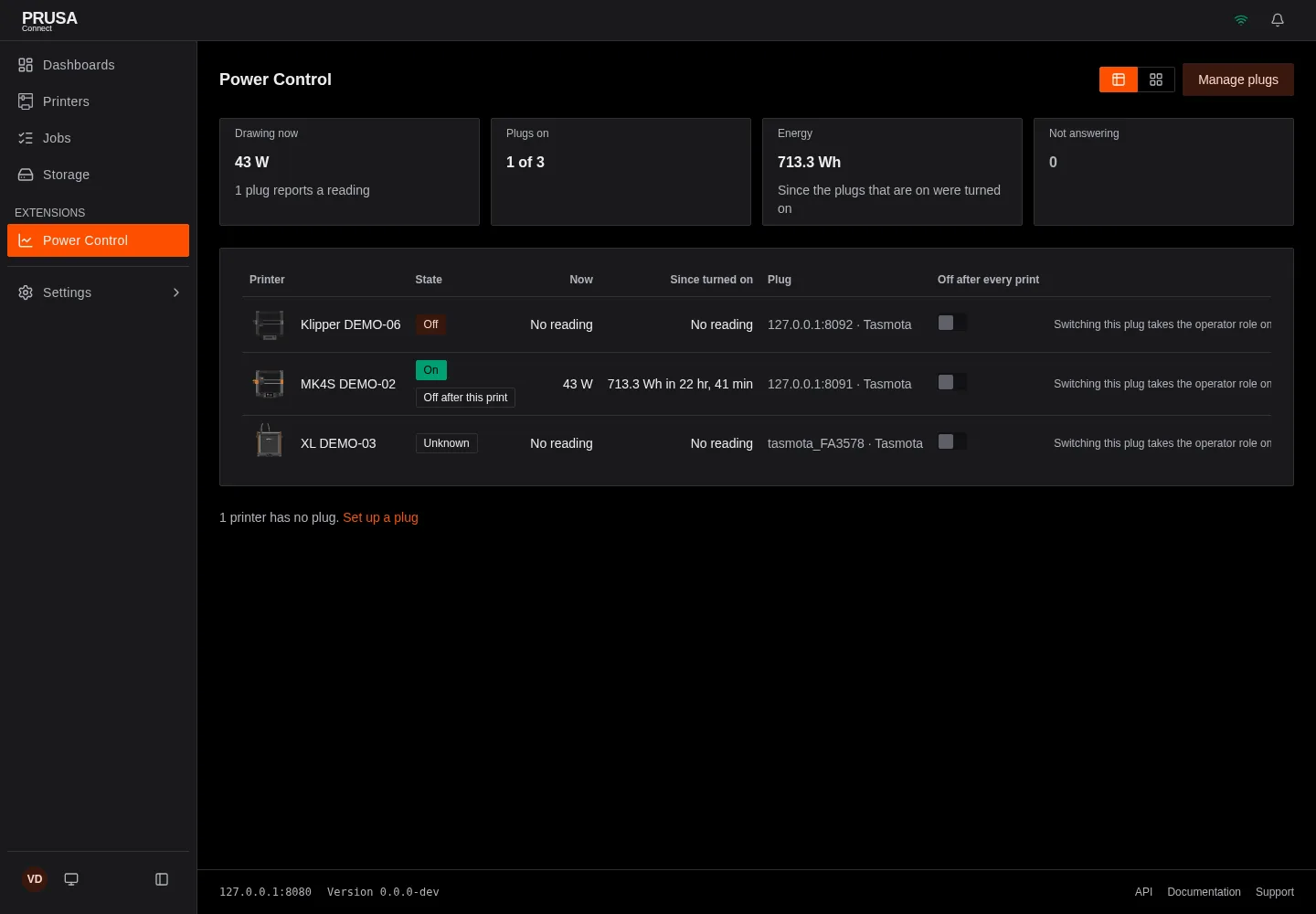
  • Connect Power Control, image 1
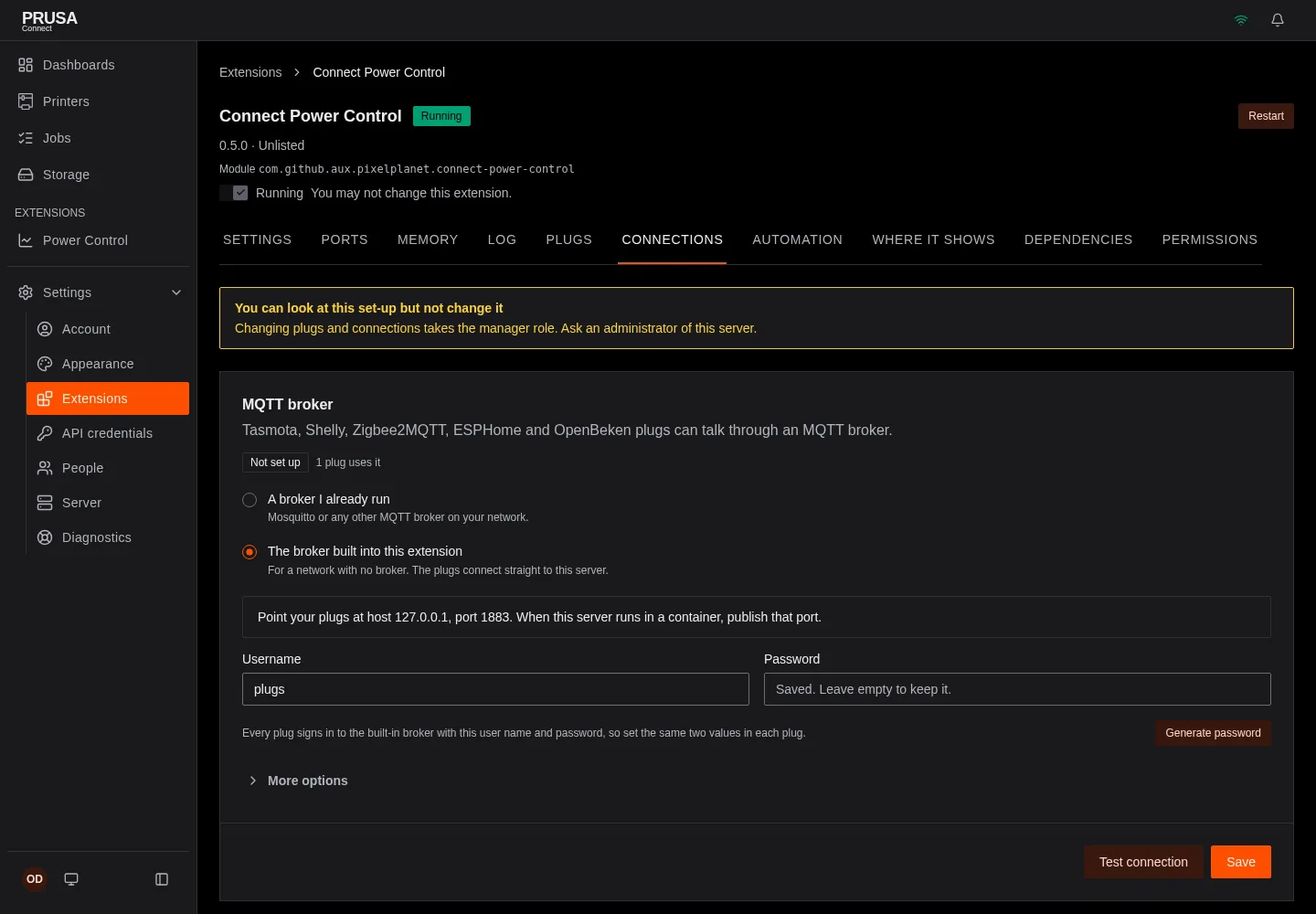
  • Connect Power Control, image 2
  • Connect Power Control, image 3
  • Connect Power Control, image 4
  • Connect Power Control, image 5
  • Connect Power Control, image 6

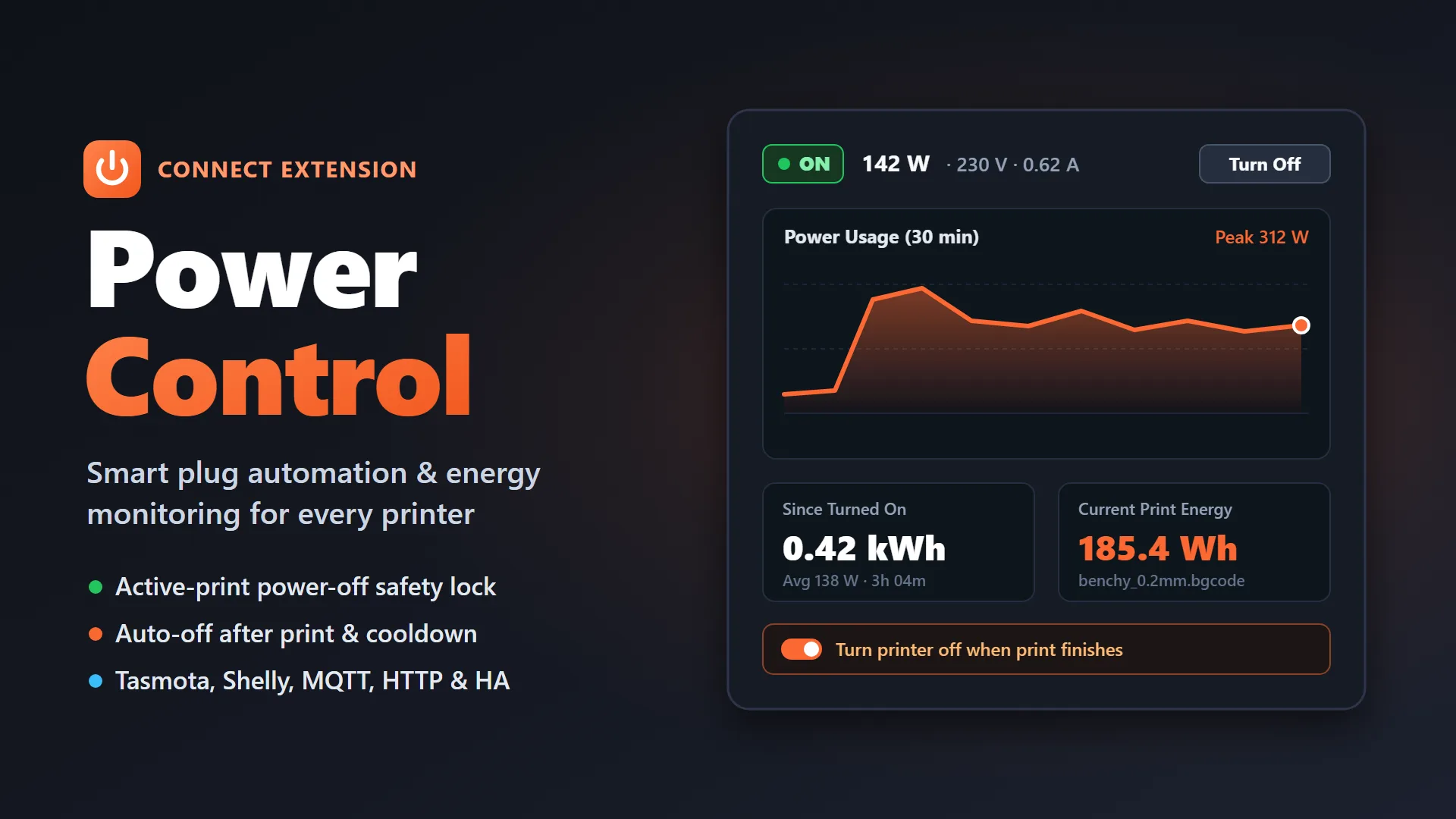
Control and monitor smart plugs (Tasmota, Shelly Gen1/Gen2+, Zigbee2MQTT, ESPHome, OpenBeken, Generic MQTT, and Home Assistant) for printers via MQTT, Direct HTTP, or REST, with active-print power-off protection and auto-off after print.

Control and monitor Tasmota smart plugs for printers via MQTT (external or built-in broker) or Direct HTTP, with active-print power-off protection and auto-off after print.

This extension is native code that runs on your Connect Local server, with the permissions you grant it at install. It is not sandboxed. Prusa reviewed this release before publishing it; install extensions only from authors you trust.

Connects to
  • the server you set in mqtt_host:1883,8883from the server

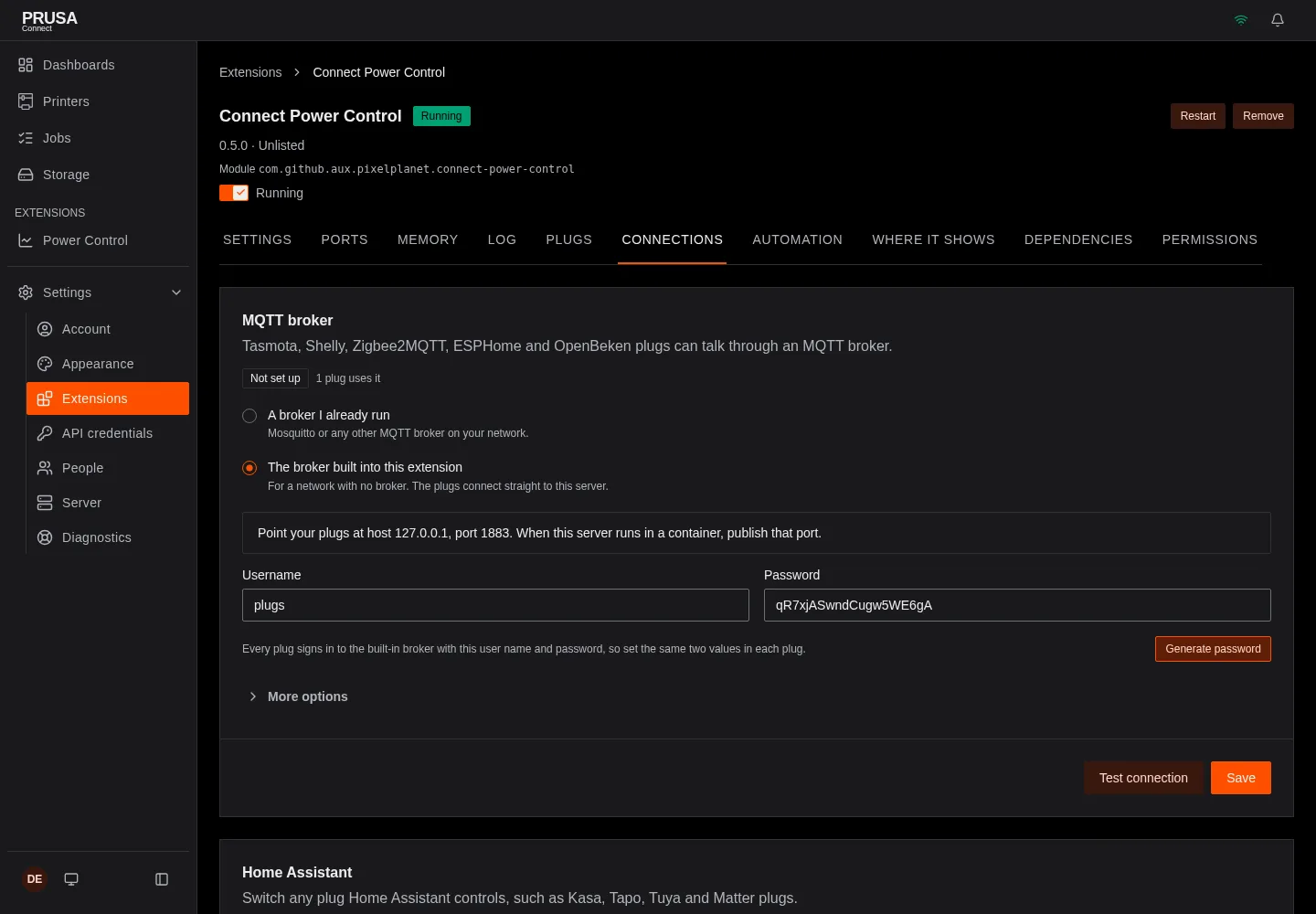
    Reaches the MQTT broker set on the Connections tab or in mqtt_host. With the built-in broker, connects once to that address to check that plugs can reach it.

    Sends: Power commands and state queries for the plugs you assigned to printers, with the broker user name and password. The reachability check sends nothing.

  • the server you set in http_host:80,443from the server

    Switches and reads a Tasmota or Shelly plug directly at the address you give that plug on the Plugs tab.

    Sends: Status queries and relay commands for that plug, with its password when you set one.

  • the server you set in ha_url:8123,80,443from the server

    Switches and reads plugs through the Home Assistant server you set on the Connections tab.

    Sends: Your access token, state queries, and turn-on and turn-off calls for the entities you assigned to printers.

What's inside 0.5.0
  • module.yamlThe manifest: what the extension is and what it asks for
  • connect-power-control_linux_amd64The program for linux amd64
  • connect-power-control_linux_arm64The program for linux arm64
  • connect-power-control_darwin_amd64The program for darwin amd64
  • connect-power-control_darwin_arm64The program for darwin arm64
  • connect-power-control_windows_amd64.exeThe program for windows amd64
  • ui/The browser bundle the Connect web app loads
  • checksums.txtThe SHA-256 of every file above
  • checksums.txt.sigThe author's signature over checksums.txt

A release may also carry LICENSE, README.md and CHANGELOG.md. Nothing else is accepted.

Versions
0.5.0latest .tar.gz

MIT · core >=0.1.0-beta.1 · sink · linux_amd64, linux_arm64, darwin_amd64, darwin_arm64, windows_amd64 · 14779.9 KB · Nov 21, 2026

Connect Power Control 0.5.0 answers the review of 0.4.1 and adds support for more plugs.

Security and review points

  • Every change now asks the server whether the person may make it. Switching a plug and auto-off take operate_resource on the extension and operate on the printer. Plugs, connections, tests and discovery take configure_resource. The actions are declared under checks.

  • The built-in MQTT broker needs a user name and a password and lets in no client that does not sign in with them. After updating, set both on the Connections tab and in each plug, or the built-in broker stays off.

  • The built-in broker listens only on the port you approve (needs.listen, TCP 1883). Testing it opens no other port.

  • The extension reaches its built-in broker in process, with no loopback connection.

New

  • Ten plug drivers: Tasmota and Shelly (MQTT or by IP address), Zigbee2MQTT, ESPHome, OpenBeken, custom MQTT topics, and Home Assistant.

  • Settings in three tabs: Plugs (a card for each printer), Connections and Automation, with a guided dialog to set up a plug.

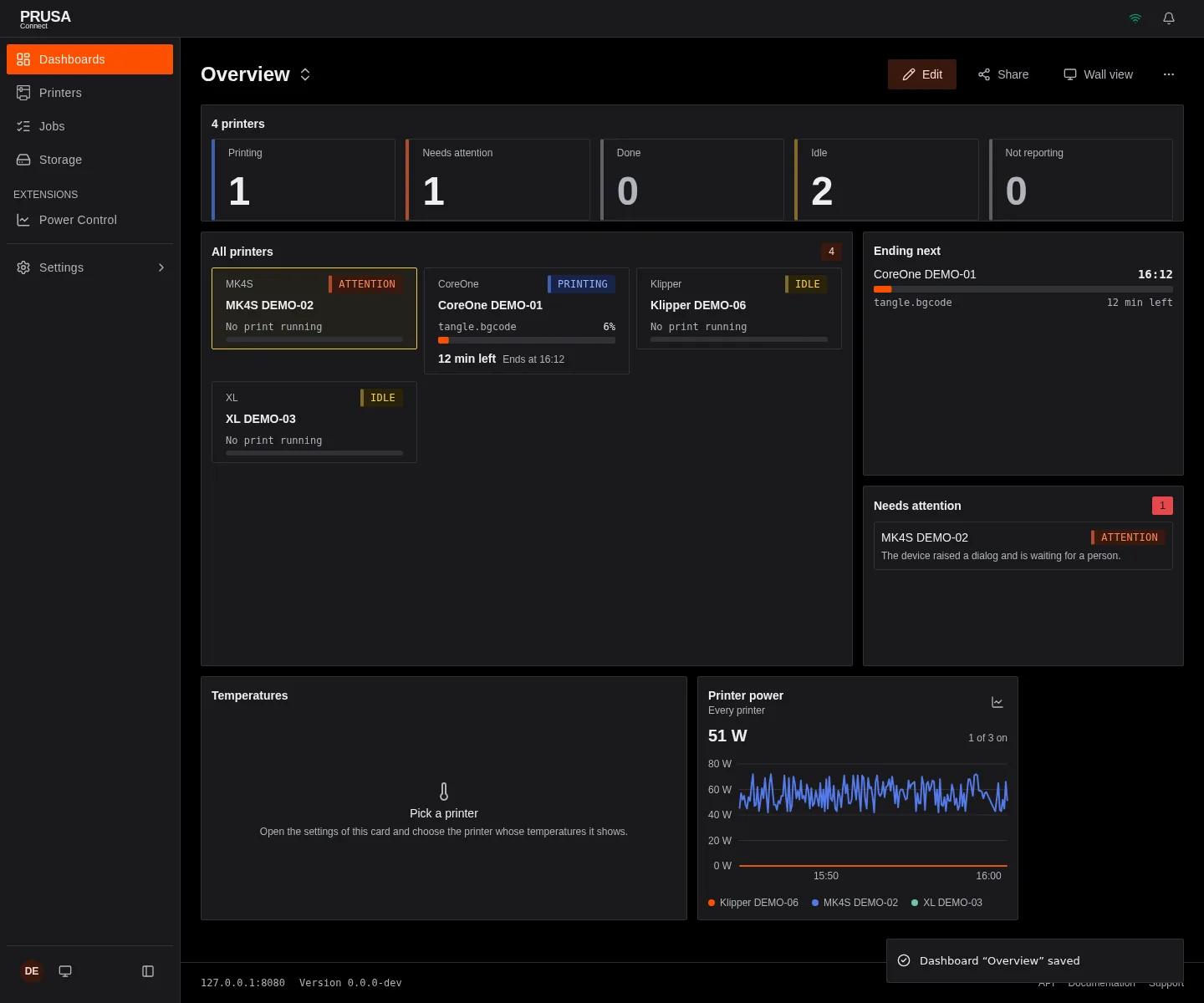
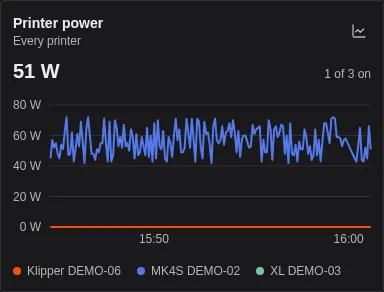
  • A Power Control page for the whole fleet, and a Printer power dashboard card with a power graph.

  • A printer can turn off after every print. It turns off only after a print that finished, never after a cancelled, failed or paused one.

  • The pages show a person only the controls their role may use.

The full list is in CHANGELOG.md.

Comments (0)

Sign in to comment.

No comments yet.